Schema validation
Check a document against a schema and step through the problems.
Tiptap Studio can validate the open document against a schema: which node types exist, what each may contain, and which marks and attributes are allowed. The check reruns after every edit.
Load a schema
Use the Schema menu in the toolbar:
- Use StarterKit schema: a bundled schema for Tiptap's StarterKit (v3) node and mark types.
- Open schema…: a JSON schema file. Once one is loaded, the item reads Open another… instead.
- Reload: read the schema file again after you change it.
- Unload: stop validating.
You can also drop a schema file on the window, or pass it at launch with
--schema <file> or --schema starter-kit. A dropped JSON file counts as a schema when
it has a top-level nodes key; otherwise it opens as a document.
Schema files
A schema is a JSON object with nodes and marks. Every key is optional.
{
  "nodes": {
    "doc": { "content": "block+" },
    "paragraph": { "content": "inline*", "group": "block" },
    "heading": { "content": "inline*", "group": "block", "attrs": ["level"], "required_attrs": ["level"] },
    "text": { "group": "inline" }
  },
  "marks": {
    "bold": {},
    "link": { "attrs": ["href", "target"], "required_attrs": ["href"] }
  }
}| Node key | Meaning |
|---|---|
content | Allowed children: a ProseMirror-style content expression such as "block+" or "paragraph (bulletList | orderedList)*", or an array of allowed types. Missing means any children. |
group | Space-separated groups this type belongs to, usable in content expressions. |
marks | Allowed mark types. Missing means any mark. |
attrs | Allowed attribute keys. Missing means any attribute. |
required_attrs | Attribute keys that must be present. |
Marks take attrs and required_attrs in the same way. A node or mark type that is not
in the schema is reported as unknown.
Problems
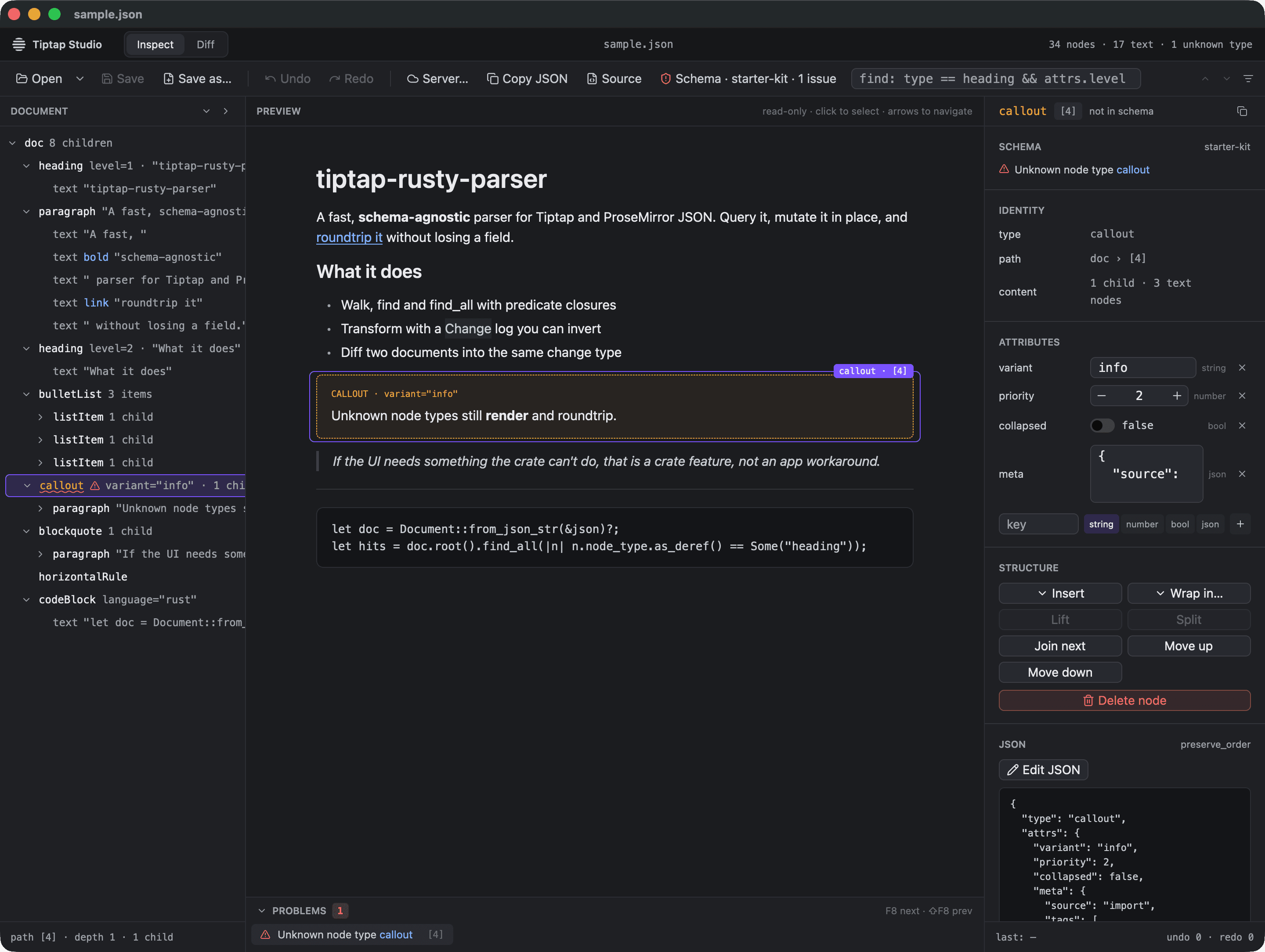
The toolbar shows the schema name and the number of issues. Problems appear in three places:
- Tree: rows with a problem are marked.
- Inspector: the Schema section lists the problems on the selected node.
- Problems drawer: under the preview, every problem in document order. Click one to select its node. The drawer header toggles it open and closed.
F8 selects the next problem after the current selection and ⇧F8 the previous one, wrapping around.
A problem points at the node where it was found: the offending child for content problems, otherwise the node itself. The checks are:
- a node without a
type - an unknown node type or mark type
- a child type not allowed inside its parent
- children that do not match the parent's content expression
- a mark not allowed on its node
- a missing required attribute, or an attribute not in the allowed set